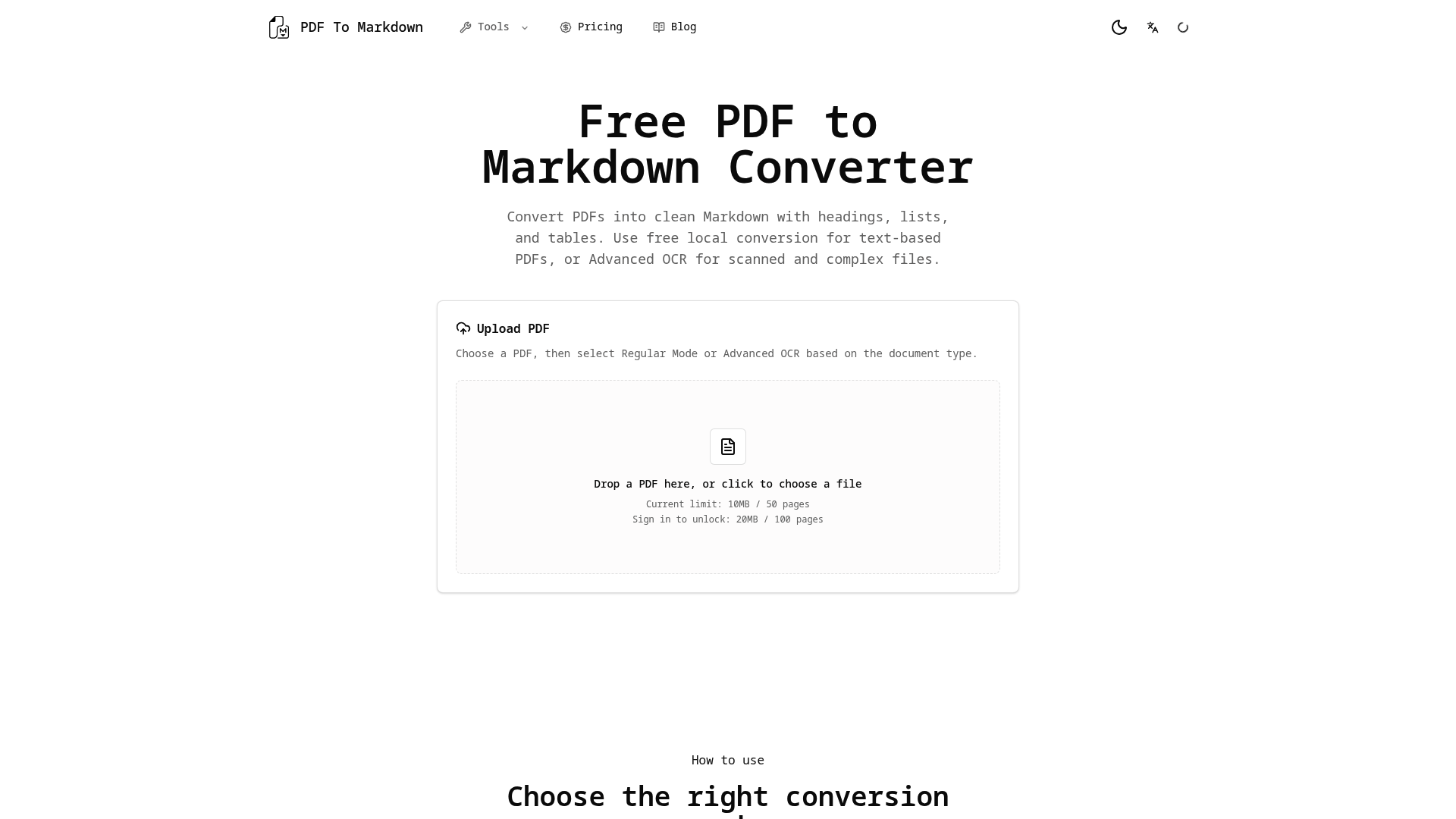
What is PDF to Markdown
PDF to Markdown is an online converter designed to turn PDF documents into clean, editable Markdown. Instead of manually copying text from a PDF, fixing broken line breaks, rebuilding headings, and reformatting lists, users can use PDF to Markdown to create structured Markdown that works better in editors, documentation tools, note-taking apps, and AI workflows.
The tool is especially useful because different PDFs need different conversion methods. Text-based PDFs can be processed with a free local mode in the browser, while scanned PDFs, image-only files, complex layouts, and table-heavy documents can use Advanced OCR. This makes PDF to Markdown useful for developers, researchers, writers, students, and anyone who needs to reuse PDF content in a cleaner format.
Core features of PDF to Markdown
PDF to Markdown provides two practical conversion modes. Regular Mode is designed for text-based PDFs with selectable text. It runs locally in the browser, which makes it fast, free, and private for simple PDF to Markdown conversion tasks. For users who care about privacy and do not need OCR, this mode is a strong everyday option.
Advanced OCR is built for scanned PDFs, image-based PDFs, and documents with more complex layouts. This PDF to Markdown mode uploads the PDF for OCR/API processing and charges credits only for successfully recognized pages. It is useful when a normal PDF extractor cannot read the content clearly.
PDF to Markdown also includes a Markdown source preview, so users can inspect the generated Markdown before exporting. The rendered Markdown preview helps users check whether headings, paragraphs, lists, and tables are readable. This is important because a PDF to Markdown converter should not only extract text, but also help users review and clean the result.
Other useful features include one-click copy, .md file download, table-aware output, and Advanced OCR results history. Completed Advanced OCR results are saved for 24 hours, giving users a short recovery window if they need to return to a previous PDF to Markdown result.
Use cases of PDF to Markdown
PDF to Markdown is useful for developers who need to convert technical PDFs, API documentation, product manuals, and internal guides into Markdown for documentation sites or developer portals. For example, a software team may receive a PDF manual from a vendor and use PDF to Markdown to create a cleaner Markdown version for its internal knowledge base.
Researchers can use PDF to Markdown to turn academic papers, reports, and reference materials into Markdown notes for Obsidian, Notion, Zotero notes, or shared research spaces. Instead of retyping long passages or losing structure during copy and paste, researchers can generate a Markdown draft and refine it for study, citation notes, or literature review workflows.
Writers and content teams can use PDF to Markdown to extract text from reports, briefs, white papers, and drafts before editing them in a Markdown editor. Students can use PDF to Markdown for lecture slides, scanned notes, and study materials. AI users can also prepare PDF content as Markdown before sending it to ChatGPT, Claude, or other AI tools, because clean Markdown is usually easier to summarize, analyze, and restructure.
How to use PDF to Markdown
Using PDF to Markdown is straightforward. First, open the tool and upload a PDF by clicking the upload area or dropping the file into the page. The current single-file limit is 20MB or 100 pages, which is suitable for many common documents, study files, reports, and manuals.
Next, choose the right PDF to Markdown conversion mode. Select Regular Mode if the PDF contains selectable text and you want a free local conversion. Choose Advanced OCR if the PDF is scanned, image-only, table-heavy, or difficult for standard extraction tools to read.
After conversion, review the Markdown source and rendered preview. This step helps you catch formatting issues, adjust headings, clean up lists, and confirm whether tables are usable. Finally, copy the Markdown to your clipboard or download the result as a .md file. For more demanding PDF to Markdown workflows, users can explore Advanced OCR and batch PDF to Markdown options.
Advantages of PDF to Markdown
One major advantage of PDF to Markdown is its flexible mode selection. Many PDF converters treat every file the same way, but PDF documents vary widely. A simple text-based PDF does not need the same processing as a scanned contract or a table-heavy report. PDF to Markdown solves this by offering Regular Mode for fast local conversion and Advanced OCR for more difficult files.
Another advantage is user experience. The interface guides users to upload a PDF, choose a mode, preview the result, and export Markdown without a complicated setup. This makes PDF to Markdown easy for beginners while still being practical for developers, researchers, and professional users.
PDF to Markdown also offers a cost advantage. Regular Mode is free and runs locally for text-based PDFs, so users can handle common conversion tasks without paying or uploading files. Advanced OCR is credit-based, which is better suited for users who only need stronger recognition for specific scanned or complex documents.
The preview workflow is also valuable. A good PDF to Markdown tool should not pretend every conversion will be perfect, because PDFs can contain columns, images, unusual spacing, footnotes, and tables. By showing both the Markdown source and rendered preview, PDF to Markdown helps users review the output before using it in documentation, notes, articles, or AI prompts.
Pricing structure of PDF to Markdown
The pricing structure of PDF to Markdown combines free local conversion with credit-based Advanced OCR. Regular Mode is free and is best for text-based PDFs with selectable content. It processes files locally in the browser, making it suitable for users who want a simple, private, and no-cost PDF to Markdown workflow.
Advanced OCR uses a credit model and costs 1 credit per successfully recognized page. This paid mode is better for scanned PDFs, image-only PDFs, complex layouts, and documents where OCR can produce a better result. In practice, this means casual users can rely on the free PDF to Markdown mode, while heavier users, students, researchers, and teams can use credits when they need more accurate recognition.
FAQs about PDF to Markdown
What is PDF to Markdown used for? PDF to Markdown is used to convert PDF files into editable Markdown for documentation, notes, research, writing, study materials, and AI workflows.
Is PDF to Markdown free to use? PDF to Markdown offers a free Regular Mode for text-based PDFs. Advanced OCR is credit-based and is designed for scanned, image-only, or complex PDFs.
Which PDFs work best with PDF to Markdown? Text-based PDFs with selectable text work best in Regular Mode. Scanned PDFs, image PDFs, and table-heavy files are better suited for Advanced OCR.
Does PDF to Markdown support scanned PDFs? Yes. PDF to Markdown supports scanned PDFs through Advanced OCR, which recognizes content from image-based pages and converts it into Markdown.
Does PDF to Markdown support tables? PDF to Markdown includes table-aware output. Simple tables may be preserved when possible, and OCR-recognized tables can be kept inline as Markdown.
Why might a PDF to Markdown result need editing? PDF files can contain complex layouts, columns, images, footnotes, and unusual formatting. PDF to Markdown provides previews so users can review and clean the result before exporting.